field is a real-time visual instrument for generative 2d art.
driven by audio, midi, or pure exploration.
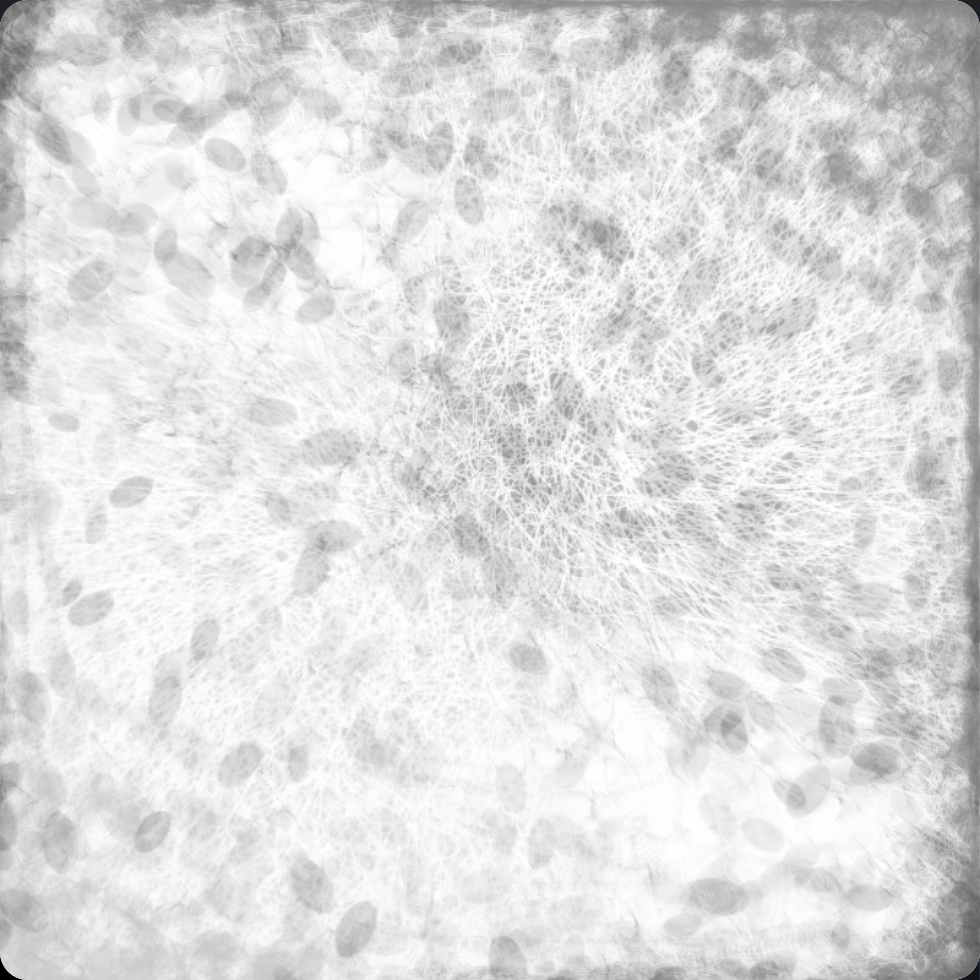
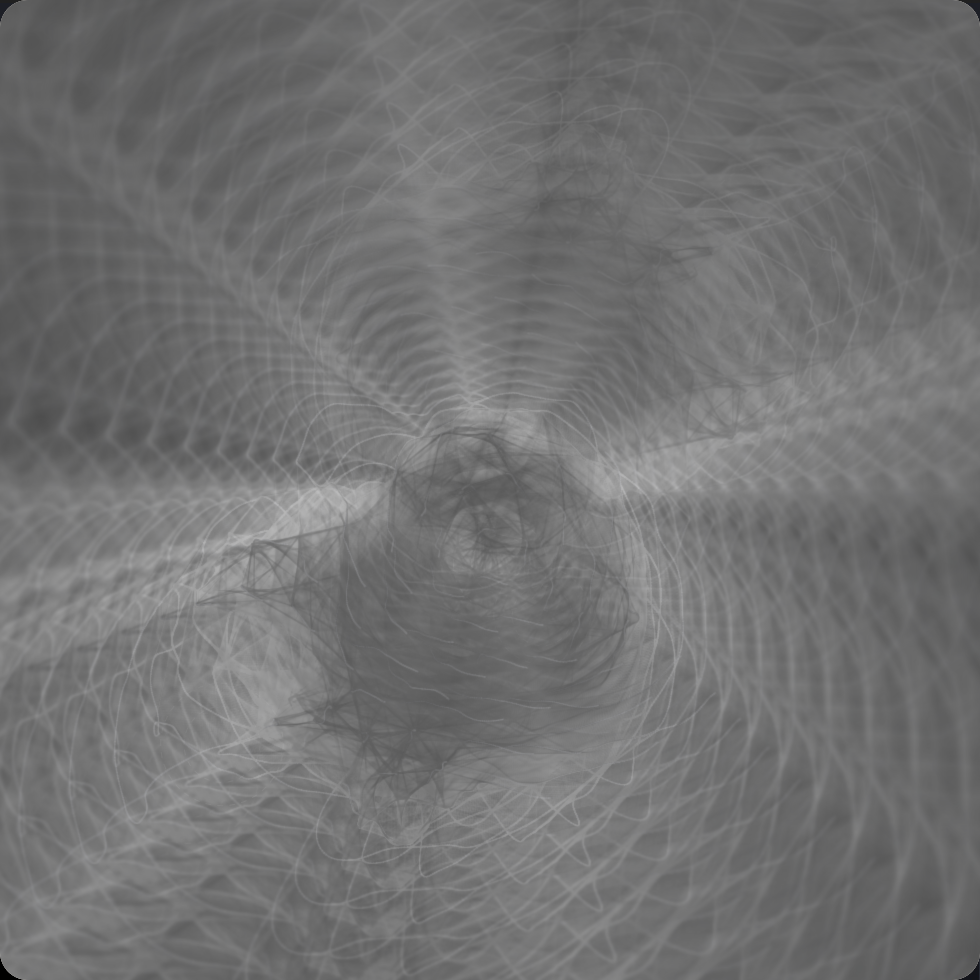
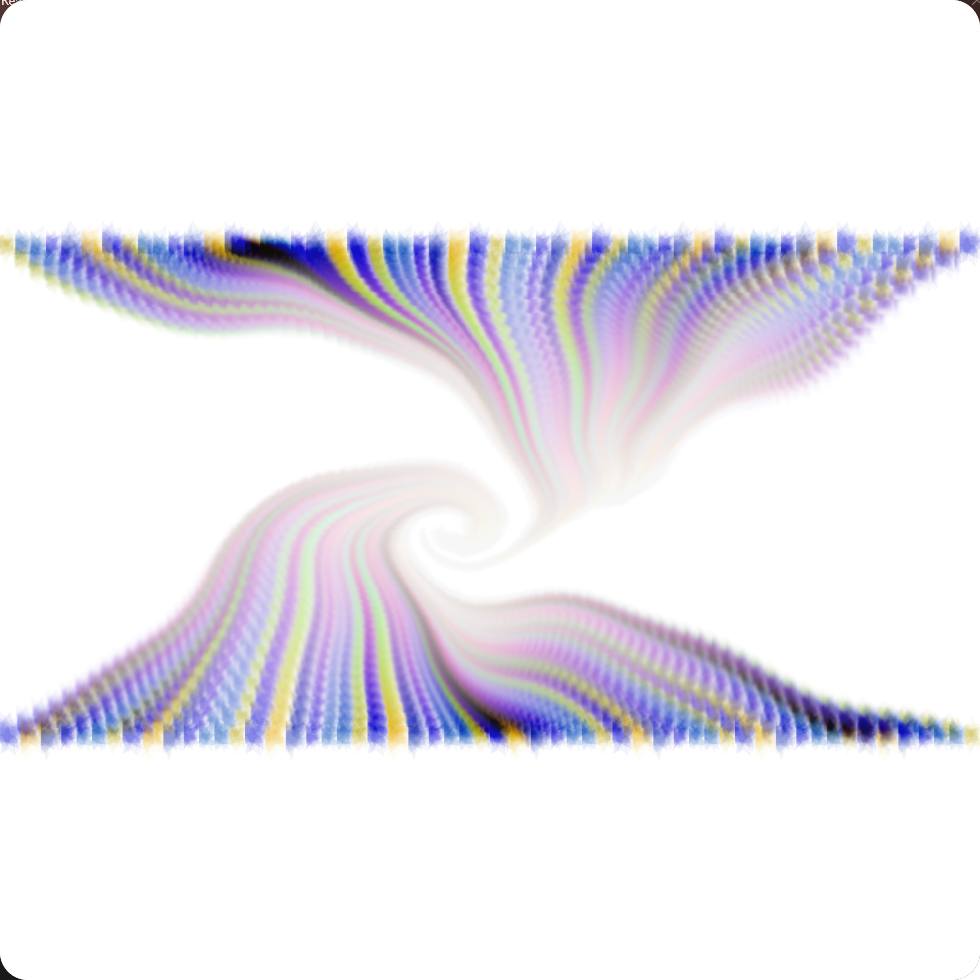
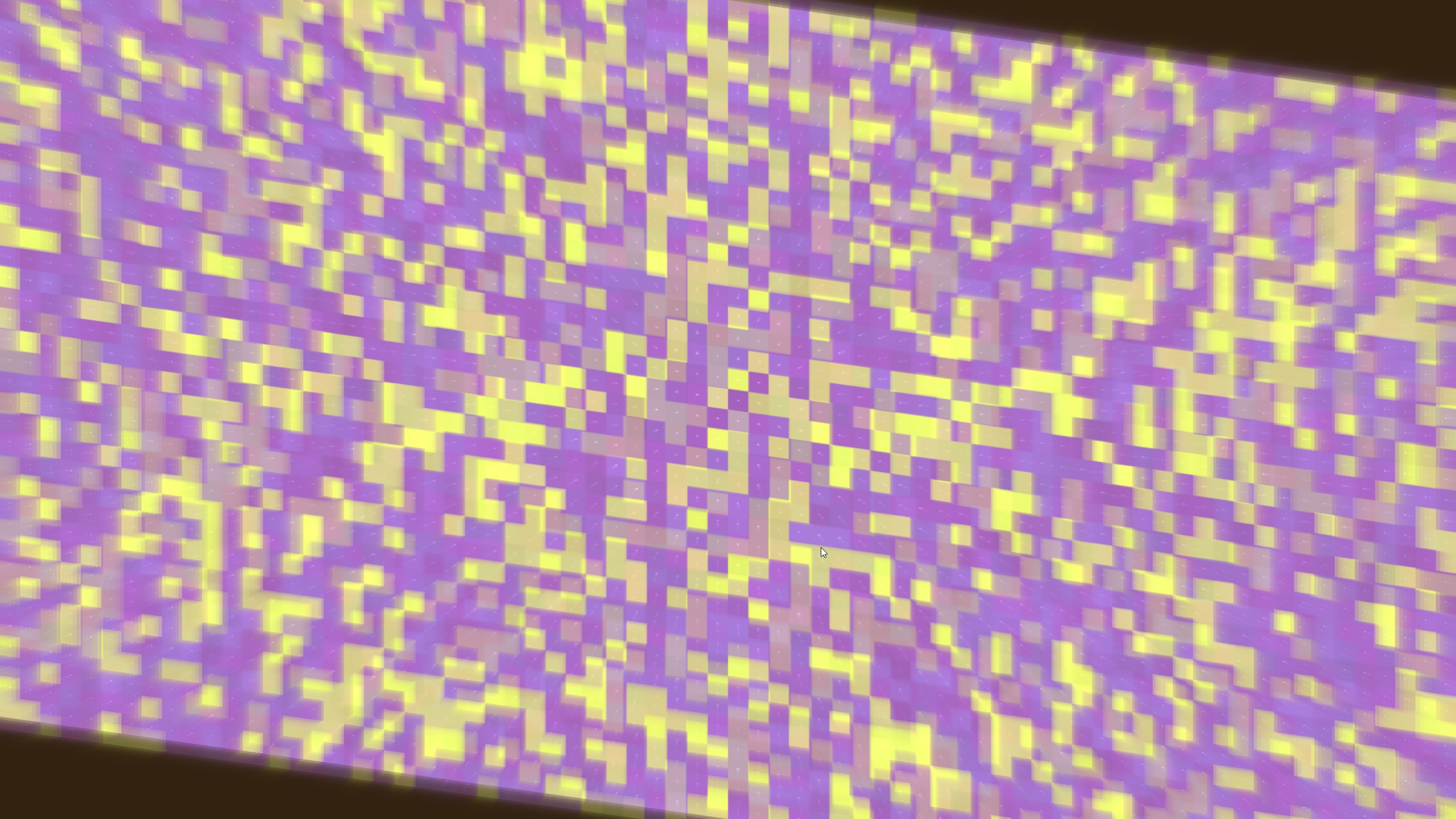
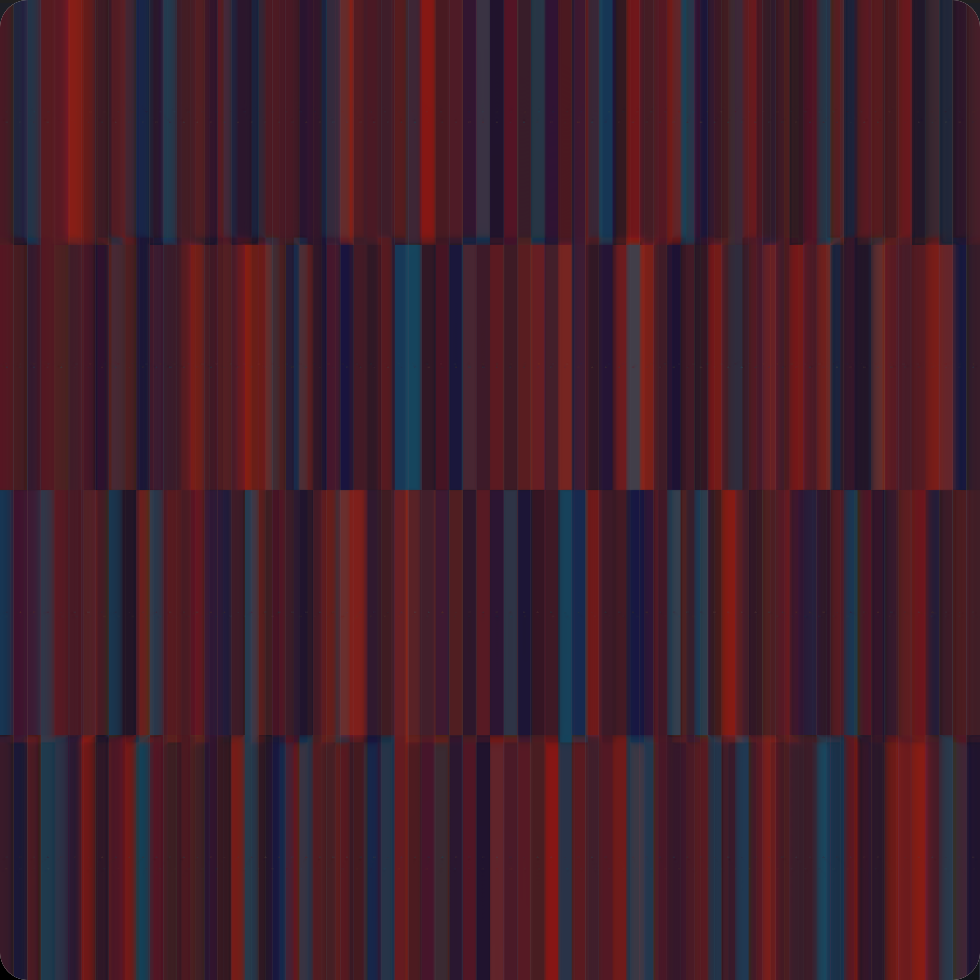


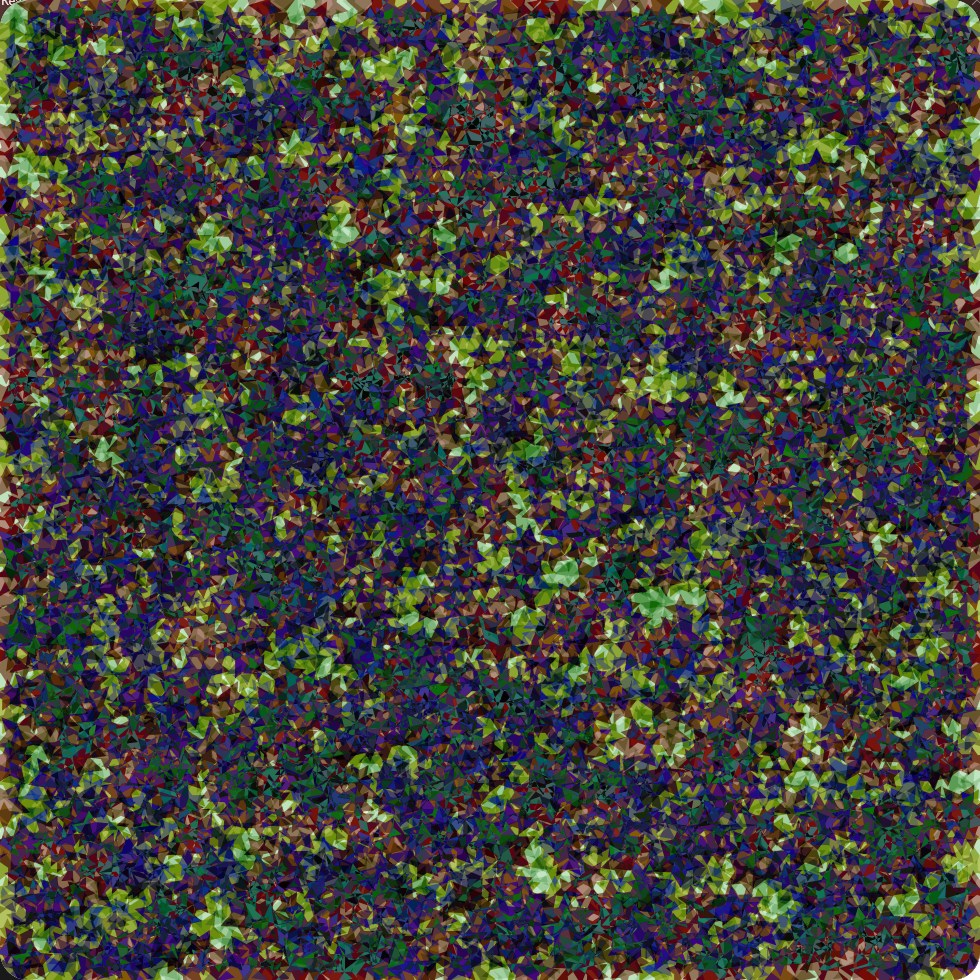
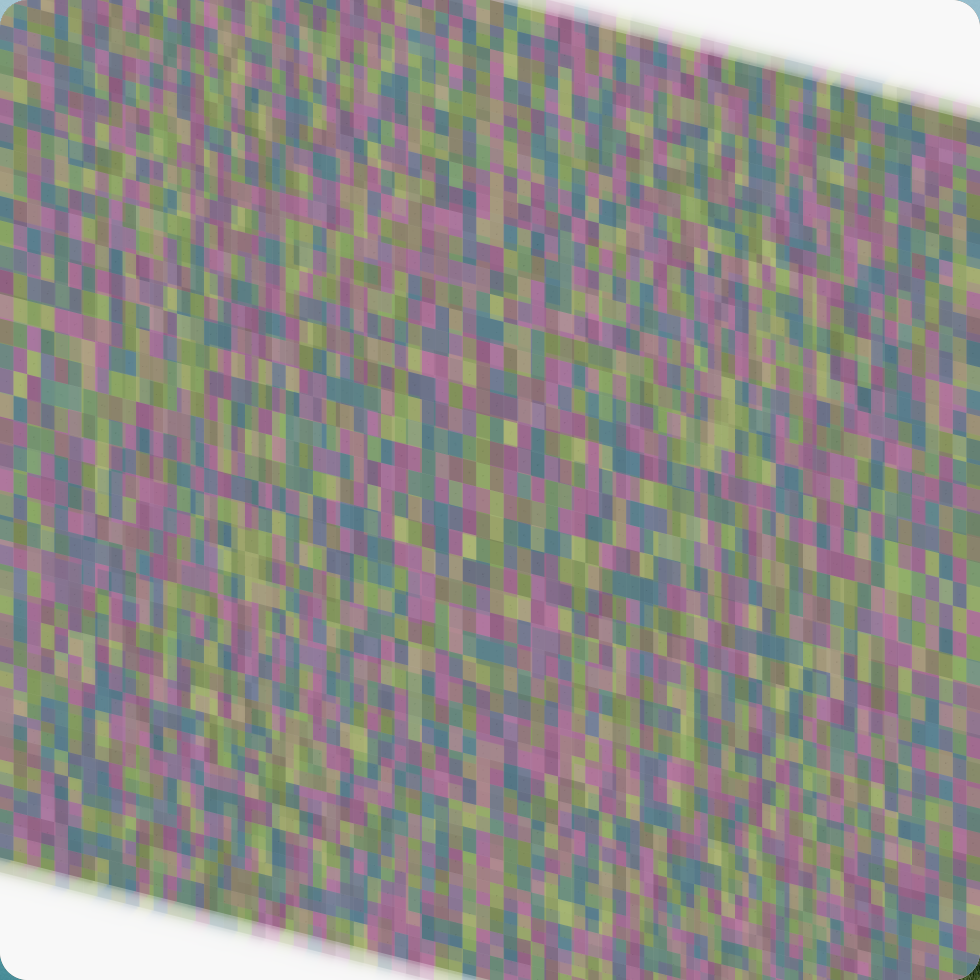
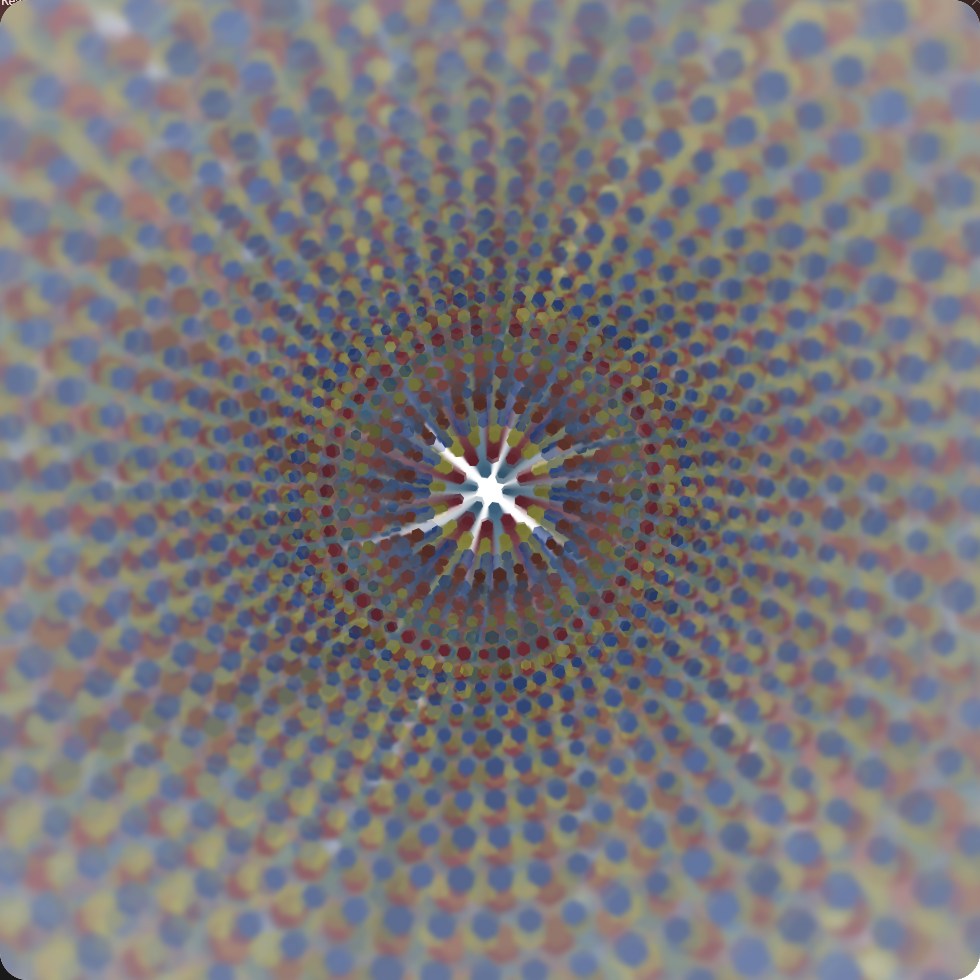
17 composition modes.
From flocking swarms and circle-packed mosaics to wood-grain contours, kinetic text ribbons, strange attractors, a freehand draw pad, and typed text as a motif. Real-time feedback systems, modular routing between any input and parameter, and a full preset engine. Every value is playable and randomizable, built for both live performance and visual work. New composition modes and presets are added with each update.
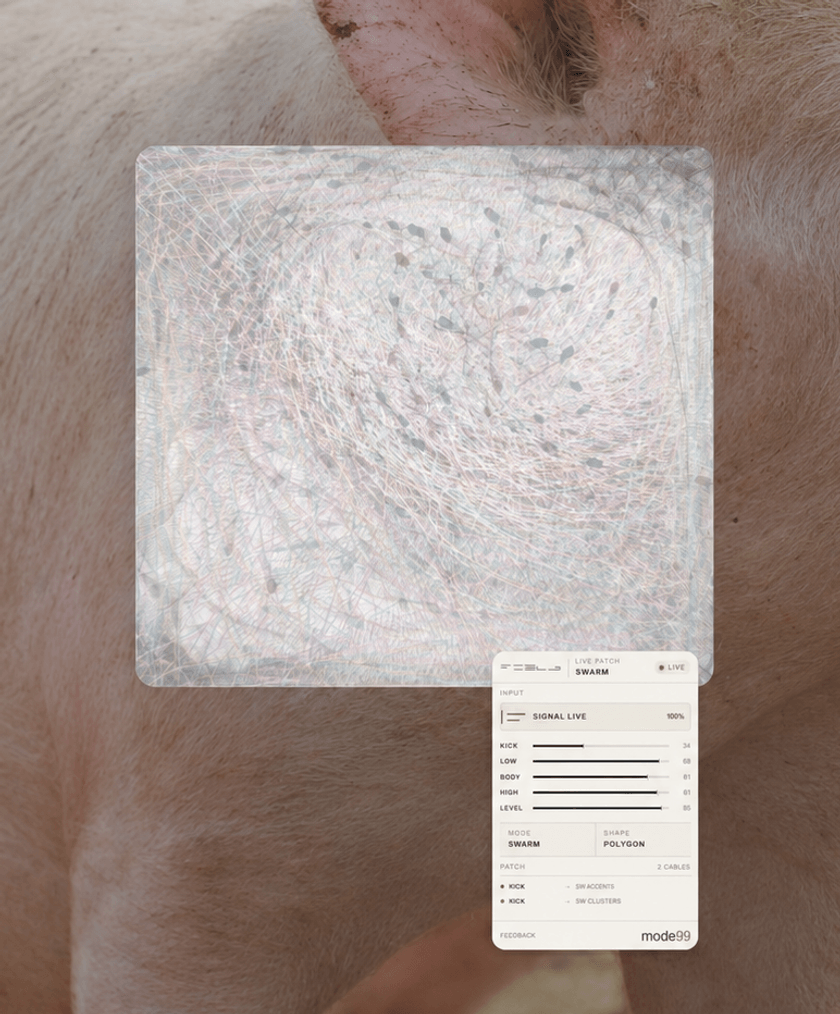
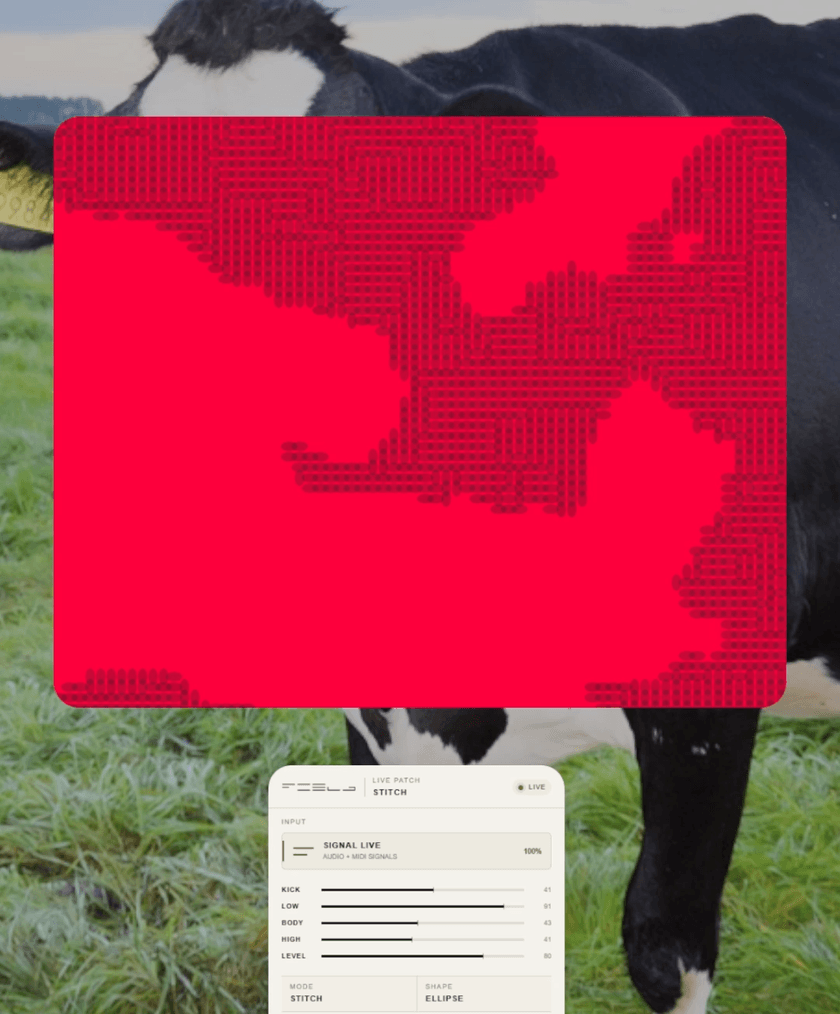
50 carefully curated presets, ready to play.
Standalone application on Windows and macOS. Every license activates on up to 3 devices, with all future updates included for free.
FAQ
How does FIELD work?
Pick a composition mode, shape its structure, and set up how it responds. Route audio, MIDI, gestures, or internal modulation to any parameter. What you end up with is a playable visual patch you can perform, tweak, and save as a preset.
What platforms does FIELD run on?
FIELD is a standalone application for Windows (10/11) and macOS (12+). No browser, no plugin host required.
How many devices can I install it on?
Each license activates on up to 3 devices, on any mix of Windows and macOS.
Can I use my own audio and MIDI gear?
Yes. FIELD works with your computer's audio input and standard MIDI devices. Connect a microphone, virtual audio cable, audio interface, keyboard, pad controller, or any other MIDI hardware and use those signals to drive the visuals in real time.
How do I route MIDI with loopMIDI?
On Windows, install loopMIDI and create a virtual MIDI port. Set that port as the MIDI output in your DAW or controller software, then pick the same port as MIDI input in FIELD. On macOS, use the built-in IAC Driver instead. Enable it in Audio MIDI Setup, create a MIDI bus, and select that bus in both applications.
How do I route audio into FIELD?
FIELD can listen to your microphone, audio interface, or a virtual audio cable. On Windows, install VB-CABLE or another virtual audio driver. Set your DAW's output to the virtual cable, then select CABLE Output as FIELD's audio input. On macOS, use BlackHole or Loopback. Route your application or DAW output to the virtual device, then select that device as FIELD's input.
Why can't FIELD see my MIDI or audio signal?
Make sure the same virtual port or audio device is selected in both your DAW and FIELD. Check that the device is enabled in your system settings, the DAW is actually sending signal, and FIELD has microphone or audio-input permission on your OS.